Music.
A piano score you can watch, hear, and explore.
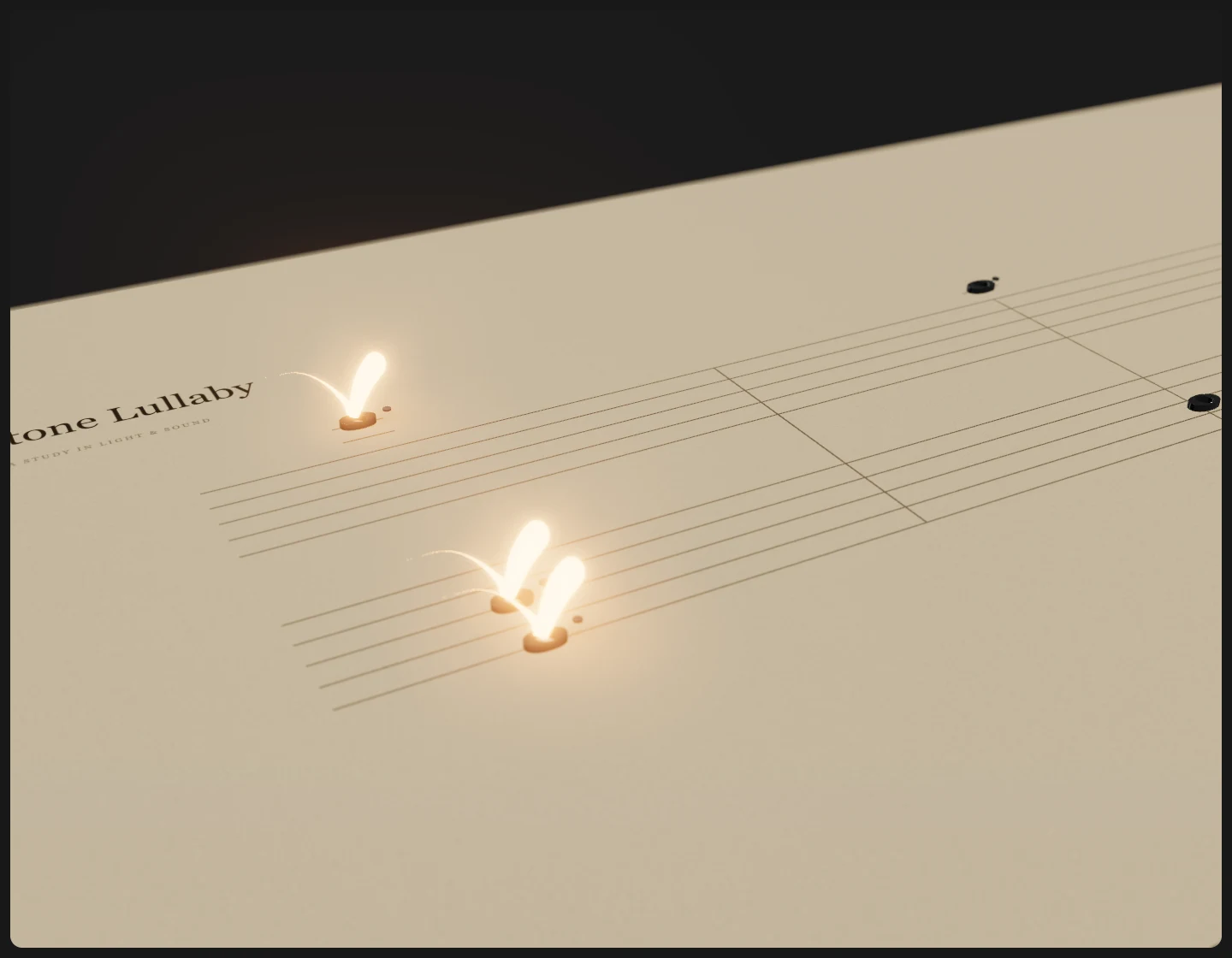
Echoes is an interactive MIDI visualizer that gives a piano performance a physical setting. Raised notes sit on warm paper, while amber beads and trails of light follow the music across the score. Built with Three.js, it turns the timing and pitch of each note into movement you can follow in your browser. Choose a performance, settle into the cinematic camera, and let the score unfold.
See the musicLight follows the piano
The animation follows individual piano notes: a bead arrives as a note sounds, then travels onward through the phrase. Paper texture, lacquered notation, soft shadows, and a warm glow make the score feel like a small stage. Only the piano part appears in the visuals, so a dense arrangement still has a clear thread to follow. The included performances retain their source audio, including the rest of the arrangement.
Bring a piece of your own
Import a .mid or .midi file to see its piano part become a new score. Echoes reads note timing, velocity, tempo changes, and sustain pedal information, then prepares the motion and sound before playback begins. Uploaded melodic parts are played with sampled grand piano, with synthesized hits for percussion. This preserves the arrangement's notes without recreating every instrument sound from the original MIDI.
Choose how you listen
Move between cinematic and overhead views, adjust the glow and focus, or fill the screen with the performance. A timeline lets you return to a phrase, and looping keeps a piece in motion. The controls fade during playback and return when you move, tap, or use the keyboard. Balanced and Performance quality settings offer lighter rendering for devices that struggle with the cinematic effects.
Find your way in.
Choose a performance
Open the player and select Choose music. The included pieces are Deep Stone Lullaby, Mia & Sebastian’s Theme, and Man of Steel. Wait for the score and audio to finish preparing.
Play and find your view
Press Play or Space to begin. Use the timeline to revisit a moment, or the left and right arrow keys to move five seconds. Open Visual settings to change the camera and rendering quality.
Add your MIDI
Choose Upload MIDI or drop a file into the player. Use a Standard MIDI file with a piano part; after preparation, it appears under Your music for the current tab session.
A few things to know.
Can I use an MP3 or a recording?
The import feature accepts MIDI files, not MP3, WAV, or other audio recordings. MIDI supplies the note and timing information used to build the score. The included performances pair prepared notation with their own source audio.
Which MIDI files work?
Use a Standard MIDI file of type 0 or 1 with musical beat timing and a piano track in General MIDI instruments 1–8. Files can contain up to 12,000 notes and should stay within 5 MB and ten minutes. Type 2 MIDI and SMPTE timing are not supported.
Why can I hear notes that do not appear on the score?
The score, beads, and trails show only the piano part. The full arrangement remains in the audio. For an imported MIDI, melodic parts use sampled grand piano and percussion uses synthesized hits; original instrument sounds and pitch bends are not reproduced.
Are imported MIDI files sent to a server?
MIDI preparation and audio rendering happen in the browser. Prepared performances can be cached on the device for reuse; Visual settings includes a Clear saved cache control. The Your music list lasts for the current tab session, so import the same file again after a reload.